Created: 5 Sep 2026, last update: 12 Oct 2026
Using the Sitecore Content Transfer API Locally with Docker
Sitecore has deprecated and removed the previous package functionality and introduced the new Sitecore Content Transfer API.
The transition happened relatively quickly, while some of the tooling and documentation are still focused primarily on cloud environments. Running SitecoreAI locally in Docker is not the recommended setup, but it is still a useful environment for daily development.
Besides providing a user friendly GUI, Sitecore Package functionality also had another important advantage. It allowed you to transfer content trees containing items with duplicate names. This can be an issue with the alternative Sitecore serialization approach, where duplicate item names in the same tree are not supported. Another alternative for local to SitecoreAI is Mockingbird
When using the Content Transfer API locally, there are currently two tools that can help:
SitecoreCommander, a .NET/C# automation toolkit for Sitecore
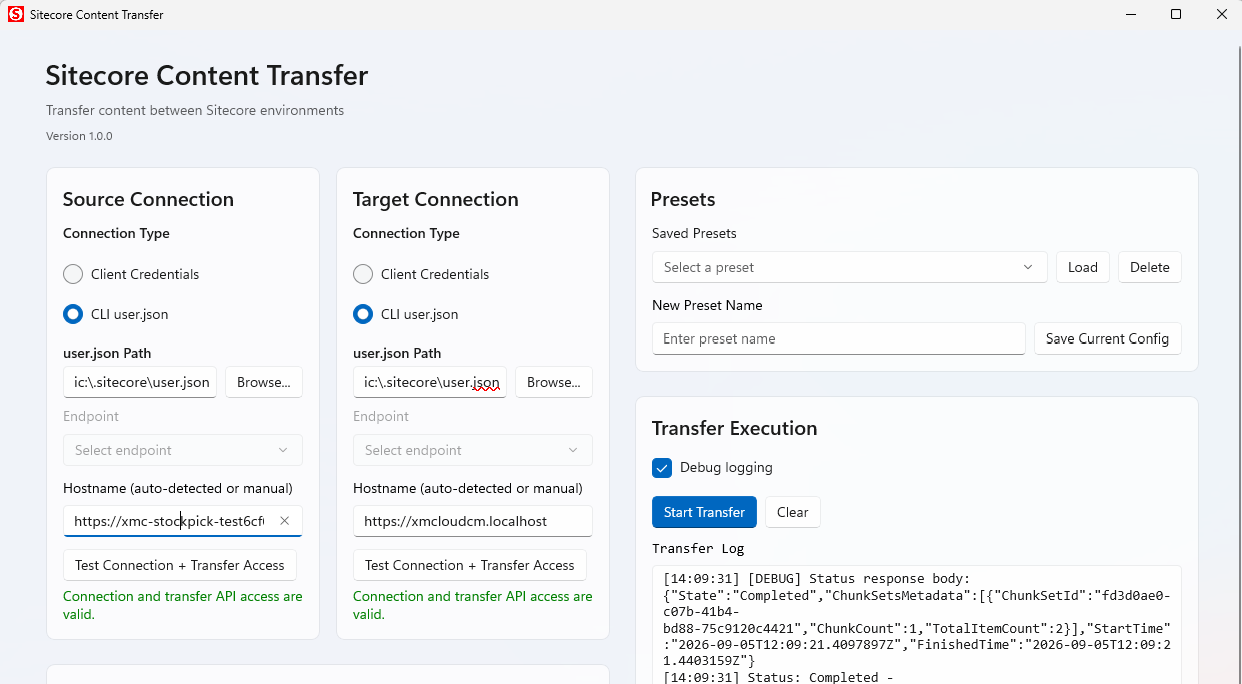
Sitecore Content Transfer GUI, a .NET/C# Windows application for Sitecore, a alternative for packages including local to SitecoreAI and vice versa.
Both tools can be used with a local Sitecore environment. However, out of the box, transferring content only works in one direction.
A transfer from local Sitecore to XM Cloud works, but a transfer from XM Cloud back to the local environment results in:
500 (Internal Server Error)
{"Error": "The Azure Blob Storage container name is invalid."}
Destination CM storage configuration is invalid. Verify the Content Transfer blob
container name in local Sitecore config (lowercase, 3-63 chars, letters/numbers/hyphen,
no leading or trailing hyphen).
The problem is that the local CM instance does not have a valid Azure Blob Storage configuration for the Content Transfer API.
Configure Azure Blob Storage
The relevant Sitecore settings are:
<setting
name="Sitecore.TransferredItems.AzureBlobStorage.ConnectionString"
value="$(env:SITECORE_XmCloud_dot_TransferFilesConnectionString)" />
<setting
name="Sitecore.TransferredItems.AzureBlobStorage.ContainerName"
value="$(env:SITECORE_XmCloud_dot_TransferFilesContainerName)" />
The easiest way to configure these values is through the cm environment section in your docker-compose.override.local.yml.
Add the following environment variables, example:
SITECORE_XmCloud_dot_TransferFilesConnectionString: "BlobEndpoint=http://host.docker.internal:10000/devstoreaccount1;AccountName=devstoreaccount1;SharedAccessSignature=sv=2021-06-08&ss=b&srt=sco&sp=rwdlacupt&st=2026-01-01T00:00:00Z&se=2036-09-01T00:00:00Z&spr=https,http&sig=epejHsfDcYwNR2DsTeFUekx2S8CcDmmMXINbTFxEc3k%3D"
SITECORE_XmCloud_dot_TransferFilesContainerName: "transferred-items"
Running Azure Blob Storage locally with Azurite
Instead of using an external Azure Storage account, you can run Azurite locally in Docker. Azurite is the local Azure Storage emulator and can provide the Blob Storage endpoint required by the Content Transfer API. For a Windows container setup, add the following service to your docker-compose.override.local.yml:
azurite:
  image: ${REGISTRY}${COMPOSE_PROJECT_NAME}-azurite:${VERSION:-latest}
  isolation: ${ISOLATION}
  build:
    context: ./docker/build/azurite
    dockerfile: Dockerfile
  container_name: azurite
  restart: unless-stopped
  ports:
    - "10000:10000"
    - "10001:10001"
    - "10002:10002"
  volumes:
    - type: bind
      source: .\docker\data\azurite
      target: c:\data

azurite-init:
  image: ${REGISTRY}${COMPOSE_PROJECT_NAME}-azurite:${VERSION:-latest}
  isolation: ${ISOLATION}
  depends_on:
    azurite:
      condition: service_started
 entrypoint:
    - powershell
    - -Command
    - >-
      $$sas='sv=2021-06-08&ss=b&srt=sco&sp=rwdlacupt&st=2026-01-01T00:00:00Z&se=2036-09-01T00:00:00Z&spr=https,http&sig=epejHsfDcYwNR2DsTeFUekx2S8CcDmmMXINbTFxEc3k%3D';
      $$uri="http://host.docker.internal:10000/devstoreaccount1/transferred-items?restype=container&$$sas";
      try {
        Invoke-WebRequest -Method PUT -Uri $$uri -Headers @{ 'x-ms-version' = '2021-06-08' } -UseBasicParsing | Out-Null;
        Write-Host 'transfer container created';
        exit 0
      } catch {
        if ($$_.Exception.Response -and [int]$$_.Exception.Response.StatusCode -eq 409) {
          Write-Host 'transfer container already exists';
          exit 0
        }
        throw
      }

#note: also add the depends on to the cm:
depends_on:
      azurite:
        condition: service_started
      azurite-init:
        condition: service_completed_successfully
Azurite Dockerfile Create the following file: docker/build/azurite/Dockerfile The Dockerfile can use a Windows Server Core image and install Node.js and Azurite:
# escape=`

# Windows-based Azurite image for local Azure Blob Storage
# Gebaseerd op de officiële Dockerfile.Windows van Azure/Azurite

FROM mcr.microsoft.com/windows/servercore:ltsc2022-amd64

# Node.js installeren
RUN mkdir c:\node
WORKDIR c:\node
RUN curl.exe -o Node.zip https://nodejs.org/dist/v22.12.0/node-v22.12.0-win-x64.zip && `
    tar -xf Node.zip -C c:\node && `
    del Node.zip

# Node toevoegen aan PATH
USER ContainerAdministrator
RUN setx /M PATH "%PATH%;C:\Node\node-v22.12.0-win-x64"
USER ContainerUser

# Azurite installeren via npm
RUN npm install -g azurite --unsafe-perm

# Data directory
RUN mkdir c:\data
VOLUME ["c:/data"]

EXPOSE 10000 10001 10002

# Start Azurite
ENTRYPOINT ["cmd", "/S", "/C"]
CMD ["azurite", "-l", "c:/data", "--blobHost", "0.0.0.0", "--queueHost", "0.0.0.0", "--tableHost", "0.0.0.0", "--loose", "--skipApiVersionCheck"]
The important part here is that port 10000 is exposed for the Blob service. From the Sitecore CM container, host.docker.internal can then be used to access the Blob Storage endpoint on the Docker host.
The connection string therefore points to:
http://host.docker.internal:10000/devstoreaccount1
The SAS token matters
There is another issue that is easy to miss when configuring Azurite.
If the connection string does not contain a SharedAccessSignature, the Content Transfer API can fail with an exception such as:
IndexOutOfRangeException:
Index was outside the bounds of the array.
Sitecore.Data.ItemsTransfer.Azure.AzureTransferFileBlobProvider
.FixUrlDecoding(String originalString)
Adding a SAS token resolves this particular problem, but the SAS token must also contain the permissions required by Sitecore.
For example, you may encounter:
403 This request is not authorized to perform this operation using this permission.
AuthorizationPermissionMismatch
Having a syntactically valid SAS token is not enough. During Content Transfer initialization, Sitecore also uses blob tags. Therefore, the SAS token needs permission to work with blob tags.
The relevant permission is:
rwdlacupt
The important difference is the final t. A token containing: rwdlacup is not sufficient. The t permission is required for blob tags.
Generating a SAS token
If you need to generate another SAS token for your local Azurite instance, the following PowerShell script can be used:
$ErrorActionPreference = 'Stop'

$accountName = 'devstoreaccount1'
$accountKey = 'Eby8vdM02xNOcqFlqUwJPLlmEtlCDXJ1OUzFT50uSRZ6IFsuFq2UVErCz4I6tq/K1SZFPTOtr/KBHBeksoGMGw=='
$permissions = 'rwdlacupt'
$services = 'b'
$resourceTypes = 'sco'
$start = '2026-01-01T00:00:00Z'
$expiry = '2036-09-01T00:00:00Z'
$ip = ''
$protocol = 'https,http'
$version = '2021-06-08'
$encryptionScope = ''
$stringToSign = "$accountName`n$permissions`n$services`n$resourceTypes`n$start`n$expiry`n$ip`n$protocol`n$version`n$encryptionScope`n"
$hmac = [System.Security.Cryptography.HMACSHA256]::new([Convert]::FromBase64String($accountKey))
$sig = [Convert]::ToBase64String($hmac.ComputeHash([Text.Encoding]::UTF8.GetBytes($stringToSign)))
$sas = "sv=$version&ss=$services&srt=$resourceTypes&sp=$permissions&st=$start&se=$expiry&spr=$protocol&sig=$([uri]::EscapeDataString($sig))"

Write-Output "SIG=$sig"
Write-Output "SAS=$sas"

function Invoke-FixUrlDecoding([string]$originalString) {
  $array = $originalString.Split([string[]]@('SharedAccessSignature='), [StringSplitOptions]::None)
  if ($array.Length -lt 2) {
    throw "FixUrlDecoding would fail: SharedAccessSignature= not found"
  }
  $text = $array[1]
  $array2 = $text.Split([char]'&')
  for ($i = 0; $i -lt $array2.Length; $i++) {
    $flag = $array2[$i].EndsWith('=', [StringComparison]::Ordinal)
    $text2 = ''
    if ($flag) { $text2 = [System.Net.WebUtility]::UrlEncode('=') }
    $array3 = $array2[$i].Split([char]'=')
    $array3[1] = [System.Net.WebUtility]::UrlEncode($array3[1])
    $array2[$i] = $array3[0] + '=' + $array3[1] + $text2
  }
  $text = [string]::Join('&', $array2)
  return $array[0] + 'SharedAccessSignature=' + $text
}

$conn = "BlobEndpoint=http://host.docker.internal:10000/devstoreaccount1;SharedAccessSignature=$sas"
$fixed = Invoke-FixUrlDecoding $conn
Write-Output "CONN=$conn"
Write-Output "FIXED=$fixed"

$date = [DateTime]::UtcNow.ToString('R')
$msVersion = '2021-06-08'
$canonicalizedHeaders = "x-ms-date:$date`nx-ms-version:$msVersion`n"
$canonicalizedResource = "/devstoreaccount1/transferred-items`nrestype:container"
$blobStringToSign = "PUT`n`n`n`n`n`n`n`n`n`n`n`n$canonicalizedHeaders$canonicalizedResource"
$blobSig = [Convert]::ToBase64String($hmac.ComputeHash([Text.Encoding]::UTF8.GetBytes($blobStringToSign)))
$auth = "SharedKey ${accountName}:$blobSig"
try {
  $resp = Invoke-WebRequest -Method PUT -Uri 'http://127.0.0.1:10000/devstoreaccount1/transferred-items?restype=container' -Headers @{
    'x-ms-date' = $date
    'x-ms-version' = $msVersion
    'Authorization' = $auth
  } -UseBasicParsing
  Write-Output "CREATE_STATUS=$($resp.StatusCode)"
} catch {
  Write-Output "CREATE_ERROR=$($_.Exception.Message)"
  if ($_.Exception.Response) {
    $stream = $_.Exception.Response.GetResponseStream()
    $reader = New-Object IO.StreamReader($stream)
    Write-Output "CREATE_BODY=$($reader.ReadToEnd())"
  }
}